The Schedule screen
The Schedule tab is the home screen and the heart of the app. It shows who is on call for every week of the selected year.
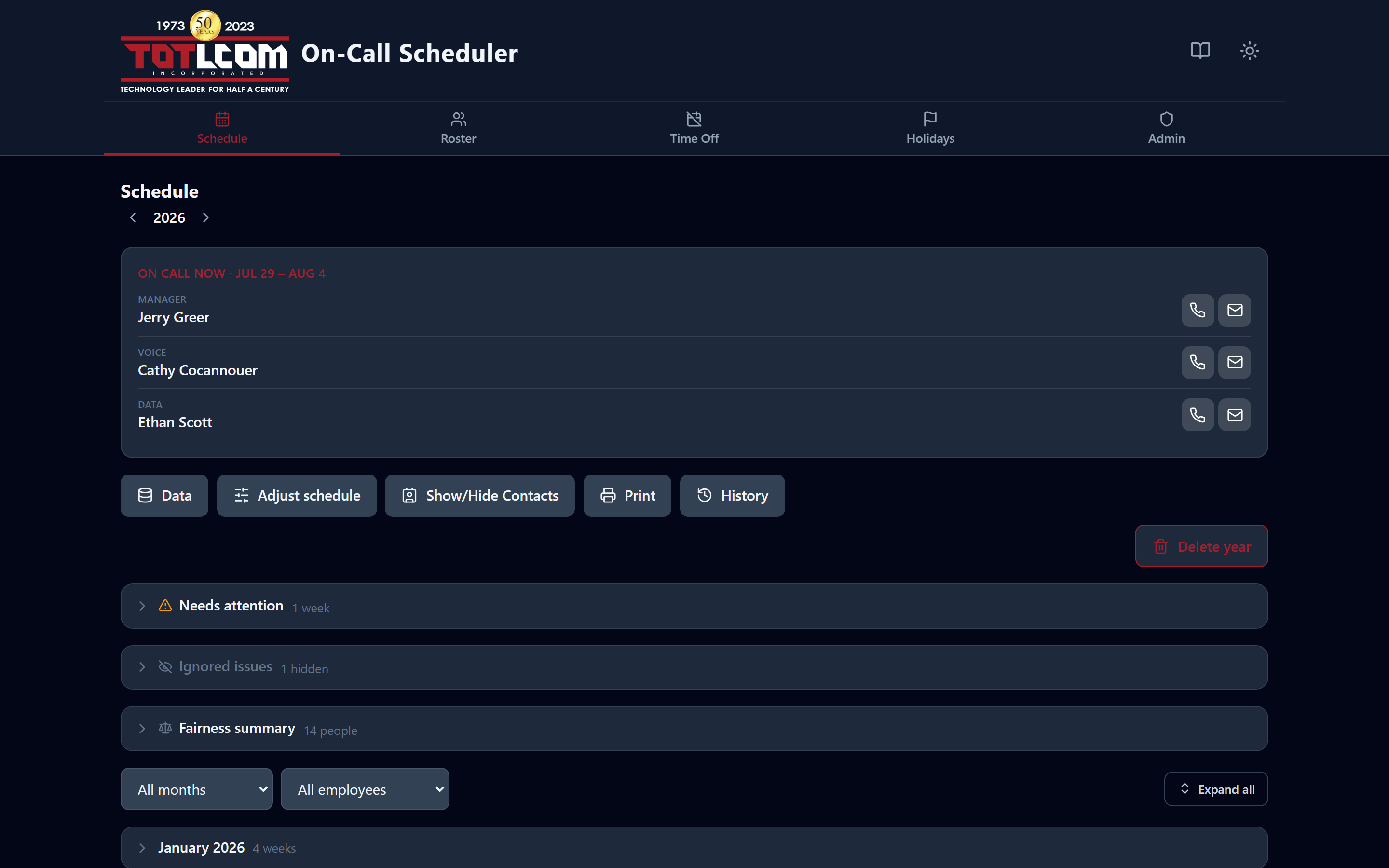
The Schedule screen: who's on call now, the toolbar, Needs attention, and the weeks grouped by month.
Reading the schedule
- Weeks run Wednesday to Tuesday (that's the TOTLCOM standard) and are grouped by month.
- Each week shows the three roles: Manager, Voice, and Data, with the assigned person's name.
- Holiday weeks are marked with the holiday's name. If a holiday slot hasn't been filled yet it shows "(fill manually)".
- A small "On call now" card highlights the current week so you can see at a glance who's covering today.
- If someone is covering today for the scheduled person (a day override), the card shows the person actually on call, with "covering for …" under their name.
- A role with covered days shows a small "2 days covered" badge under the name. Hover over it, or tap it on a phone, to see who covers which days.
- The card rolls over to the next week at the configured changeover — by default Wednesday at 00:01 Pacific. An admin can change the day, time, and timezone via environment variables (see the Deployment Guide → Environment variables).
Choosing the year
Near the top there's a year selector. Switch years to view past or future schedules. Each year is independent.
Finding things quickly
-
Only the month containing the current on-call week is open when the page loads. The other months are folded up, so you land on the weeks you actually care about instead of scrolling past ten months of history. Click any month header to open it.
Because weeks run Wednesday to Tuesday, a week like Jul 29 – Aug 4 belongs to July — so in the first few days of August, July is still the month that opens. That's the group with the highlighted This week row in it. - Filter by month — show just one month at a time. - Filter by employee — show only the weeks a particular person is on call. - Collapse all / Expand all — fold the month groups up or open them all, handy on a phone. - Back to top — jumps you back to the top after scrolling through a long year.
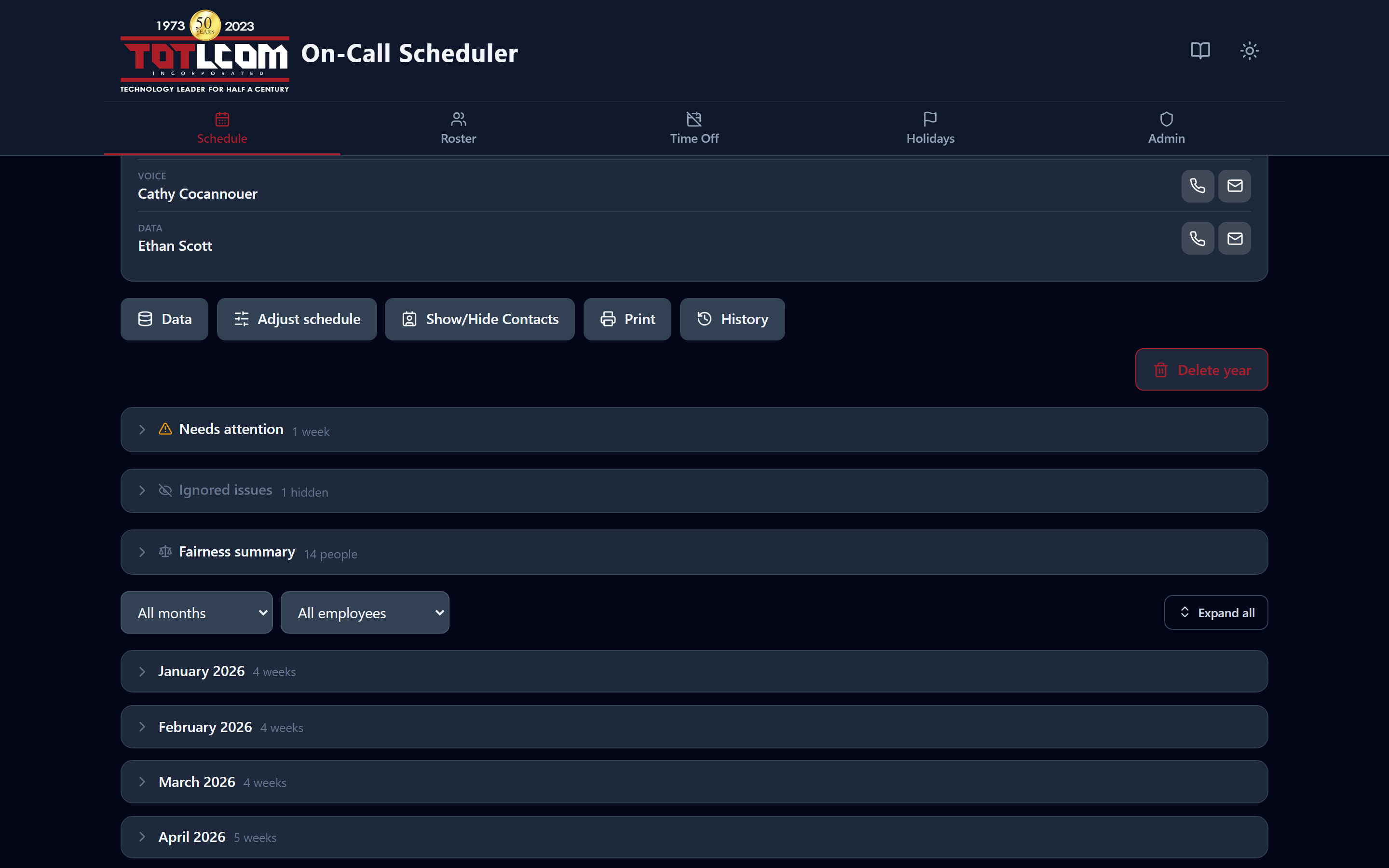
Months are collapsible. Only the one holding the current week starts open.
Note
Viewing a past or future year has no "current month", so the app opens January of that year instead.
The "Needs attention" panel
Near the top, a Needs attention panel flags weeks that may need a human to look at them:
- a PTO conflict (someone is scheduled while on vacation),
- an empty slot (no one assigned),
- a forced pick (the app had to assign someone who'd normally be skipped, because no one else was available),
- an unfilled holiday.
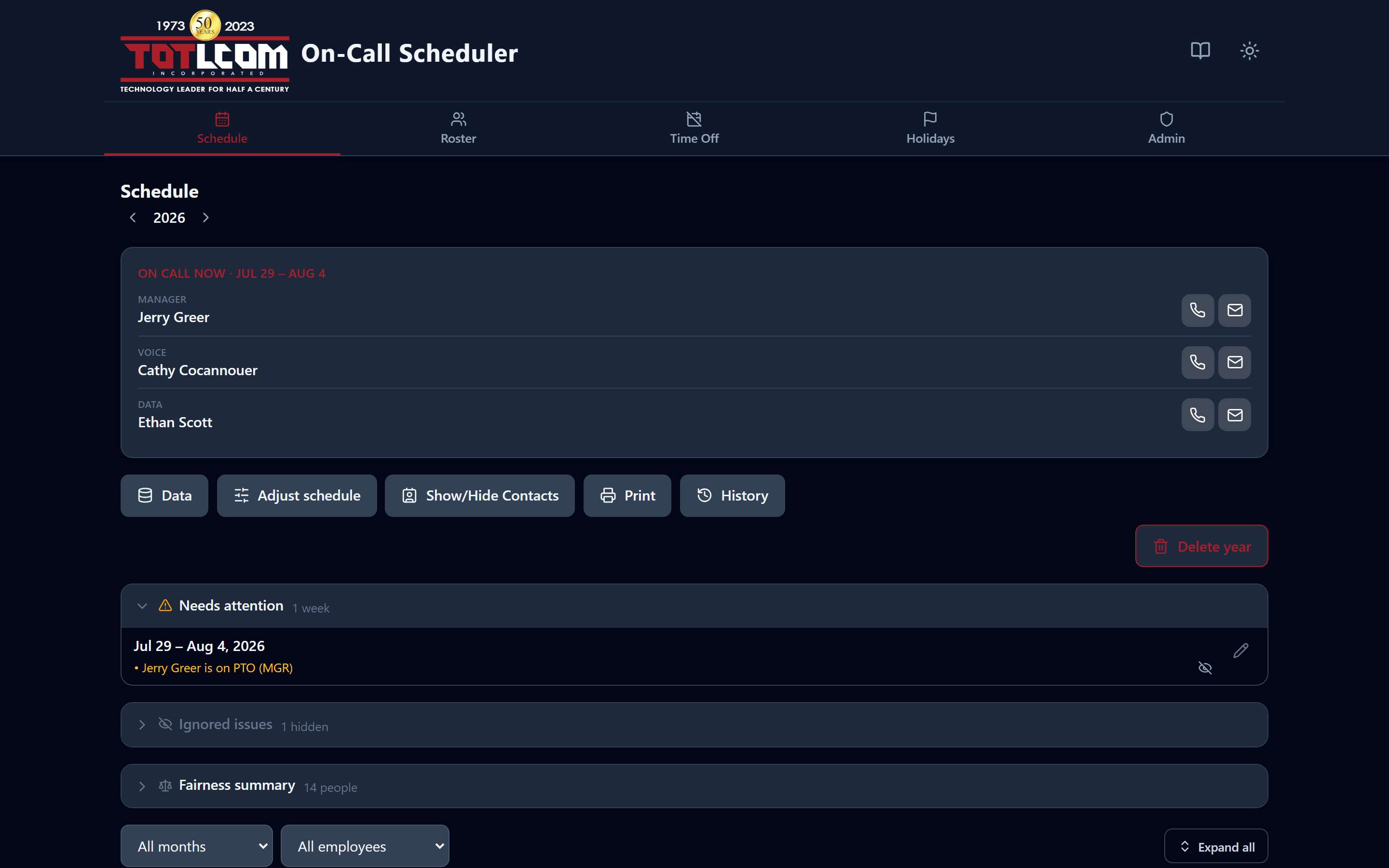
Each flag is its own line. If the panel is empty, the schedule is clean.
Finished weeks drop off automatically. Once a week has fully ended, its flags disappear — there is nothing left to fix, and leaving them there would bury the weeks you can still do something about. The week you're currently in stays on the list.
Ignoring an issue
Sometimes a flag is correct but not a problem: coverage was arranged over the phone, the person's PTO was cancelled, the slot is deliberately empty. Editors and admins can hide that flag for everyone.
- Open Needs attention and find the line you want to clear.
- Click the eye-with-a-slash button next to it.
- Pick a reason from the dropdown, then click Ignore issue.

The eye-with-a-slash button sits at the end of each flag.
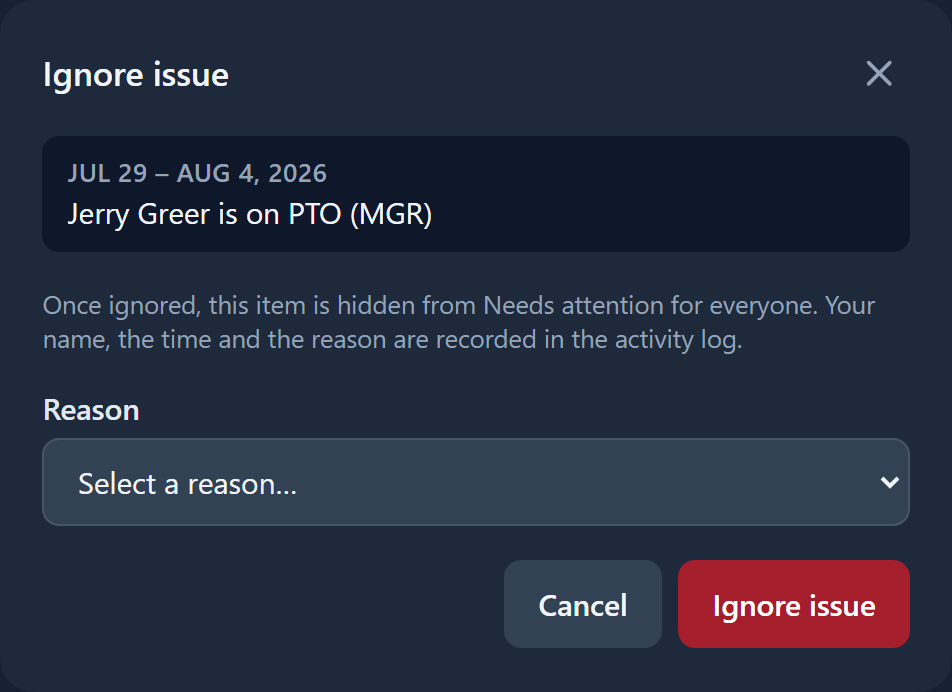
You can't dismiss anything without picking a reason.
The dropdown offers:
| Reason | Use it when |
|---|---|
| Coverage arranged outside the schedule | Someone is covering, just not via the app |
| Employee confirmed available (PTO doesn't apply) | The PTO entry doesn't actually stop them working that week |
| Intentional — approved by manager | A manager decided it stands as-is |
| Slot intentionally left unfilled | Nobody is meant to be on that slot |
| Already resolved / duplicate | Handled elsewhere, or the same thing flagged twice |
| Not applicable to this week | The flag doesn't make sense here |
| Other | Anything else — you must type an explanation |
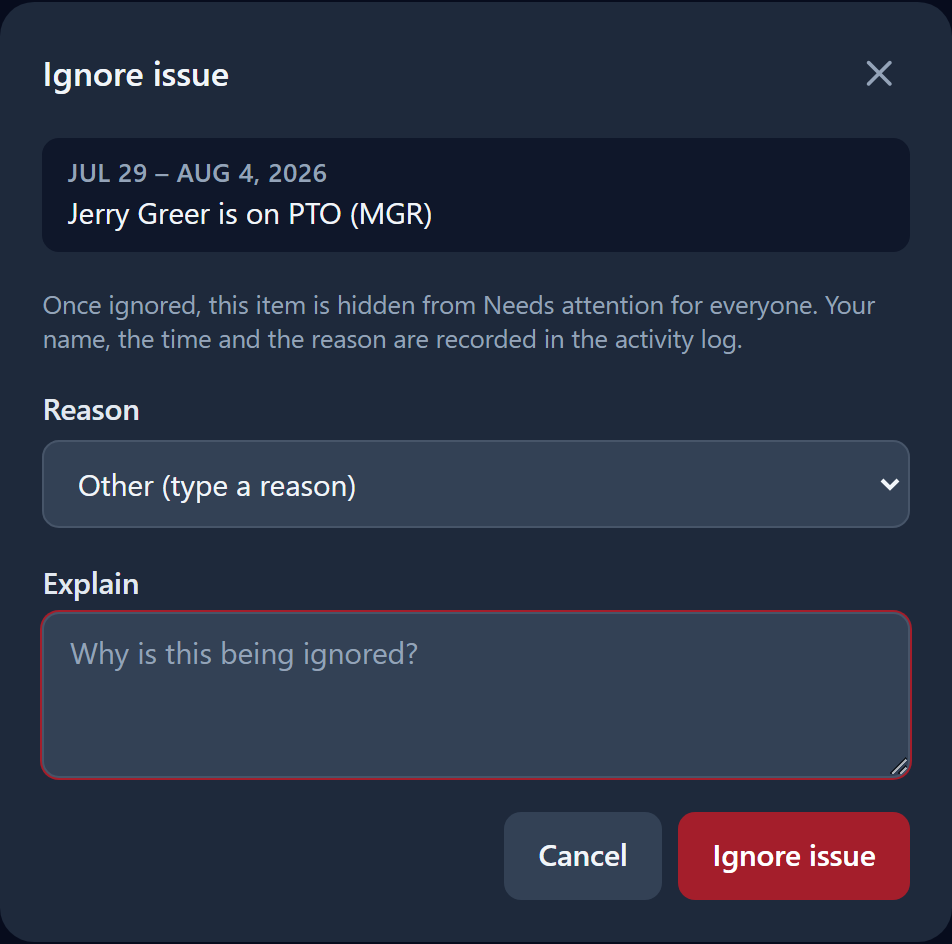
Choosing Other reveals a box you have to fill in.
A few things worth knowing:
- You ignore one line, not the whole week. Clearing "Voice unfilled" leaves that week's other flags visible, and if a new problem appears on the same week later it will still show up.
- A reason is required, and choosing Other requires typed text. This is deliberate: months later someone will ask why a week isn't flagged, and the answer needs to be on the record.
- Everything is logged. Your email, the time, the reason and any typed note go into the Activity log under Ignored · Ignored issue, alongside the issue text as it read at the time.
- Ignoring is instant and applies to everyone. There is no approval step.
Un-ignoring — admins only
Admins see an extra Ignored issues panel below Needs attention, collapsed by default. Editors and viewers don't see it at all.
Open it to see everything currently hidden for that year: the week, the original issue, the reason, who ignored it and when. The undo arrow on the right puts an item back on the Needs attention list. That restore is logged too, as Un-ignored.
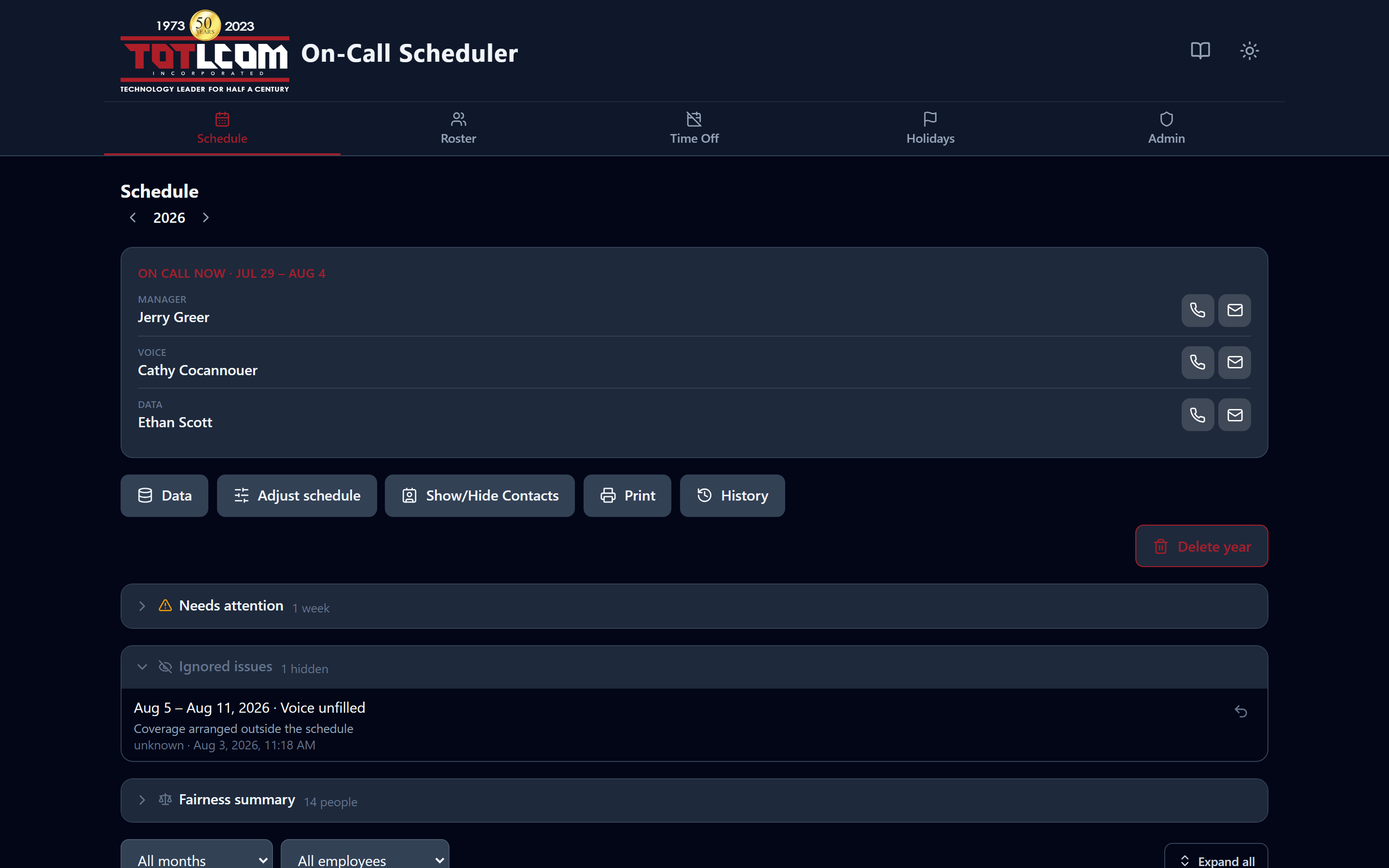
Admins only. Every hidden item, with its reason and who hid it.
Note
Deleting or re-importing a year clears its ignored issues along with its weeks — a rebuilt year starts with a clean slate.
History — snapshots and activity
Click History to open two tabs that answer two different questions.
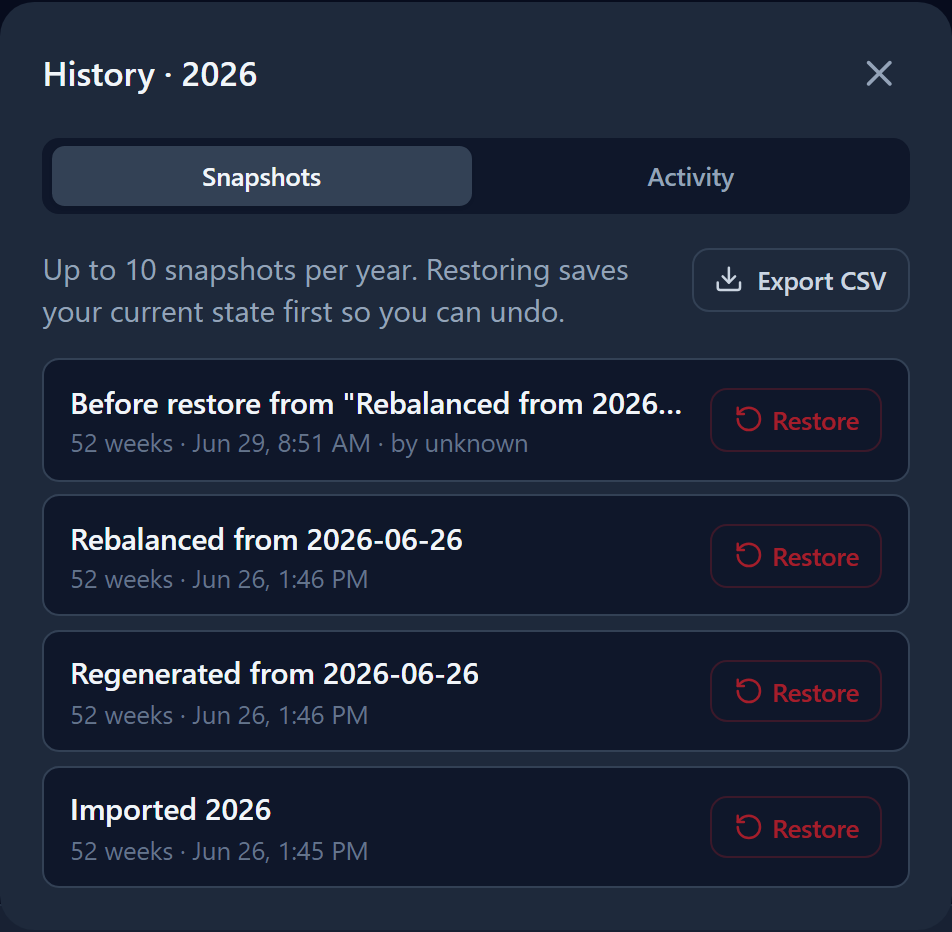
Snapshots on the left tab, the full activity trail on the right.
Snapshots — "put it back how it was"
A list of recent saved versions of the year. Every time someone Generates, Imports, Applies time off, Redistributes weeks, Assigns holidays, or Restores, the app saves a snapshot first so you can go back.
Each entry shows:
- a short label (e.g. "Regenerated from 2026-07-01"),
- the number of weeks and the date/time,
- who made the change — the signed-in person's email, shown as "· by name@totlcom.com".
Note
Snapshots created before this "who changed it" feature was added won't show an author — that's normal. The app keeps the most recent snapshots per year and prunes older ones automatically.
To go back to an earlier version, click Restore next to it. The app takes a fresh snapshot of the current state first (labeled "Before restore from …"), so a restore is always reversible.
Restoring also puts back the covered days (day overrides) the snapshot had. Snapshots taken before day overrides existed don't know about them, so restoring one of those leaves today's covered days as they are. Editing a single week doesn't take a snapshot, so a cover added through Edit week after the snapshot was taken isn't in it.
Export CSV on this tab downloads one row per snapshot — created time, label, week count and author.
Activity — "who did what, when"
A running record of every change made anywhere in the app — not just the schedule. Roster edits, holiday changes, time-off entries, user-permission changes, exports, backups and prints all appear here.
Each line shows the action, the area it affected, the person's email, and the time. Where the app recorded the old and new values, a chevron on the right expands them so you can see exactly what changed.
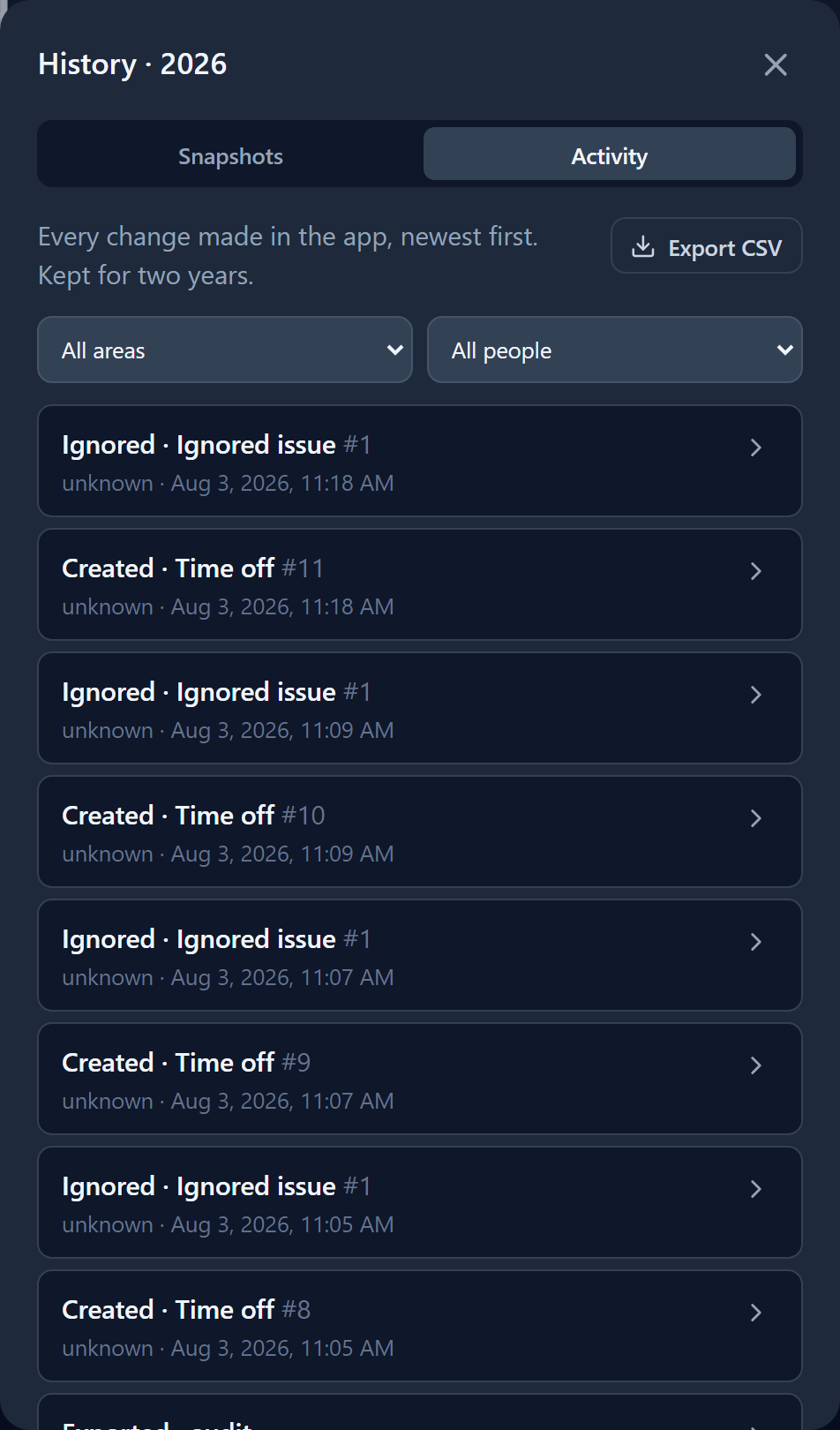
Ignoring an issue shows up here as Ignored · Ignored issue.
Two dropdowns narrow the list:
- All areas — Schedule, Week, Roster, Holidays, Time off, or Users.
- All people — anyone who has made a change.
Load more fetches the next page of older entries.
Export CSV downloads the activity log as a spreadsheet — one row per entry. It exports everything matching your current filters, not just the rows on screen, so filtering to "Roster, by Cathy" and exporting gives you every matching entry across the full two years.
Columns are: timestamp_utc, timestamp_local, user_email, action, area, entity, record_id, before_json, after_json. Two timestamps are included because the UTC one sorts correctly in Excel while the local one is the one you actually read. The before_json / after_json columns hold the raw values so nothing is lost.
Two separate reports
Each tab exports its own file with its own columns — Snapshots and Activity are never combined, since the two describe different things. Exports are capped at 20,000 rows; if you hit that you'll see a warning telling you to narrow the filters.
Scope and retention
Activity is visible to editors and admins (not viewers), because entries can include contact details from Roster edits. History is kept for two years, after which older entries are removed automatically.
Covering single days (day overrides)
Sometimes the person on call for a week needs someone else to take a day or two. For example, Danny has Data for the week, Robert takes Saturday and Jerry takes Sunday. You record that in the week itself; you don't need to swap the whole week.
- Click the pencil on the week to open Edit week.
- Click the red + to the right of the role's dropdown (Manager, Voice or Data). Hover over it and it says which one it adds, for example Add Data override.
- A row appears under that dropdown. Choose who is covering. Only people in that role's pool are offered, and the week's scheduled person isn't, because they already have every day nobody else takes.
- Click the days they take. Only that week's seven days (Wednesday to Tuesday) are shown. Click a day again to un-tick it. The days don't have to be next to each other; Wednesday, Saturday and Monday is fine.
- For a second person, click the same + again. A day someone else already has is greyed out and shows their name, because each role has one person per day.
- Click Save week.
Each day runs 12:00 AM to 11:59 PM, the same as everywhere else in the app. To undo a cover, un-tick its days or click the bin on that override row, then save.
The dialog warns you, but still lets you save, when:
- the person covering has PTO booked that day,
- a day you picked has already passed (this records who covered, but ASC and ConnectWise aren't sent changes for past days),
- you change the week's main person while it has covered days (the covered days stay with the people covering them).
The on-call manager can also cover a Voice or Data day. That's normal and isn't flagged.
What updates automatically. Saving adds the week to the ConnectWise "waiting to sync" queue, the same as any other edit, and the next ASC report shows the covered days on the grid and in the change list. Every change to a covered day is recorded in Activity under On-call overrides, with who made it and when.
What happens to covered days when the schedule changes. Swap, Apply time off and Redistribute weeks keep them. Generating or importing a whole year replaces every week, so it clears that year's covered days. Both dialogs say so before you confirm.
What you can do here
Editors and admins get two grouped menus plus a few direct buttons:
| Button | What's inside |
|---|---|
| Data | Export .xlsx, Import .xlsx, Full backup, Restore full backup |
| Adjust schedule | Apply time off, Redistribute weeks, Assign holidays, Swap two people |
| Show/Hide Contacts | Toggles phone numbers and emails in the week list |
| A clean printable view | |
| History | Snapshots and Activity, as above |
Delete year sits on its own line, away from everything else — it's the one action that can't be undone.
Everything behind Data is explained in Import, export & backup; everything behind Adjust schedule is explained on the next page.