Admin (managing users)
The Admin tab is only visible to admins. It controls who can edit the app.
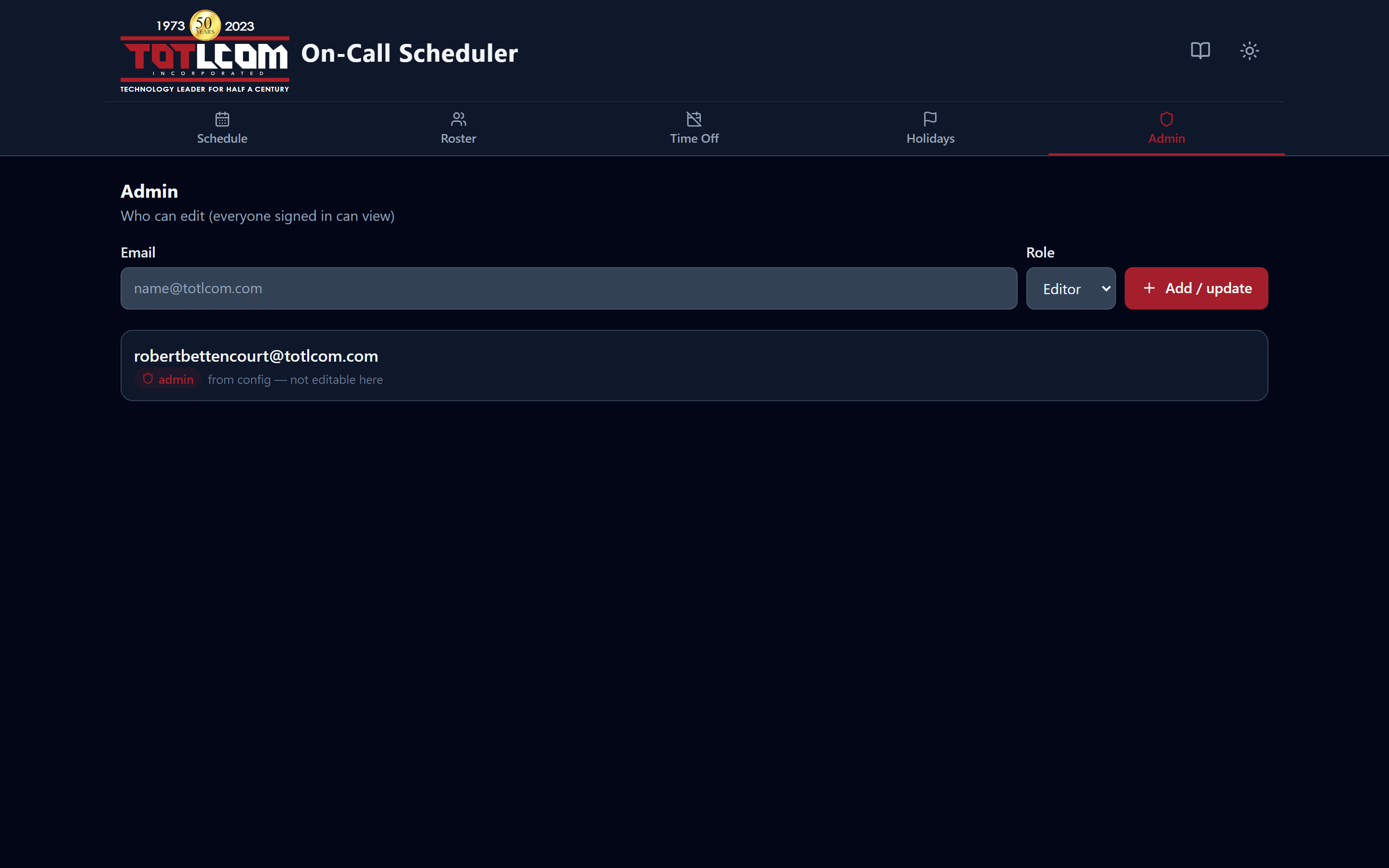
Who can edit. Everyone who signs in can already view.
The three roles, recap
- Viewer — read-only (the default for anyone who signs in).
- Editor — can change schedules, roster, time off, and holidays.
- Admin — everything an editor can, plus manage this list.
Where roles come from
There are two sources, and they work together:
- Built-in admins — a list of email addresses baked into the app's settings (
ADMIN_EMAILS). These people are always admins and can't be locked out from the Admin tab. This is how the very first admin exists. Changing it requires a deployment settings change (see the deployment guide). - In-app users — everyone else. Admins promote people to editor or admin right here on this tab, and can change them back to viewer.
Note
Anyone who signs in but isn't a built-in admin and hasn't been promoted is a viewer by default. That's the safe default — new people can look but not change anything until you grant access.
Promoting someone
- Open the Admin tab.
- Find the person (or add their email).
- Set their role to Editor or Admin.
- Save.
The change takes effect the next time they load the app.
Removing access
Set someone back to Viewer (or remove them) to revoke editing. Remember: people in the built-in ADMIN_EMAILS list stay admins regardless — to remove one of those, an admin has to change that setting in Cloudflare (see Environment variables).
Two different lists
The Admin tab controls in-app roles (who can edit). It does not control who can sign in at all — that's Cloudflare Access / Microsoft 365, managed separately. To stop someone reaching the app entirely, they must be removed from the Access policy. See Microsoft 365 SSO.