Building & fixing a schedule
These actions live on the Schedule screen and are available to editors and admins. (If you don't see the buttons, you're a viewer — see roles.)
Except for Generate, they all live behind the Adjust schedule button, which opens a menu explaining what each one is for:
| Choose | When |
|---|---|
| Apply time off | Someone booked time off and needs to come off their weeks |
| Redistribute weeks | You added or removed someone from the roster |
| Assign holidays | Holiday weeks are still blank |
| Swap two people | Two people want to trade specific weeks |
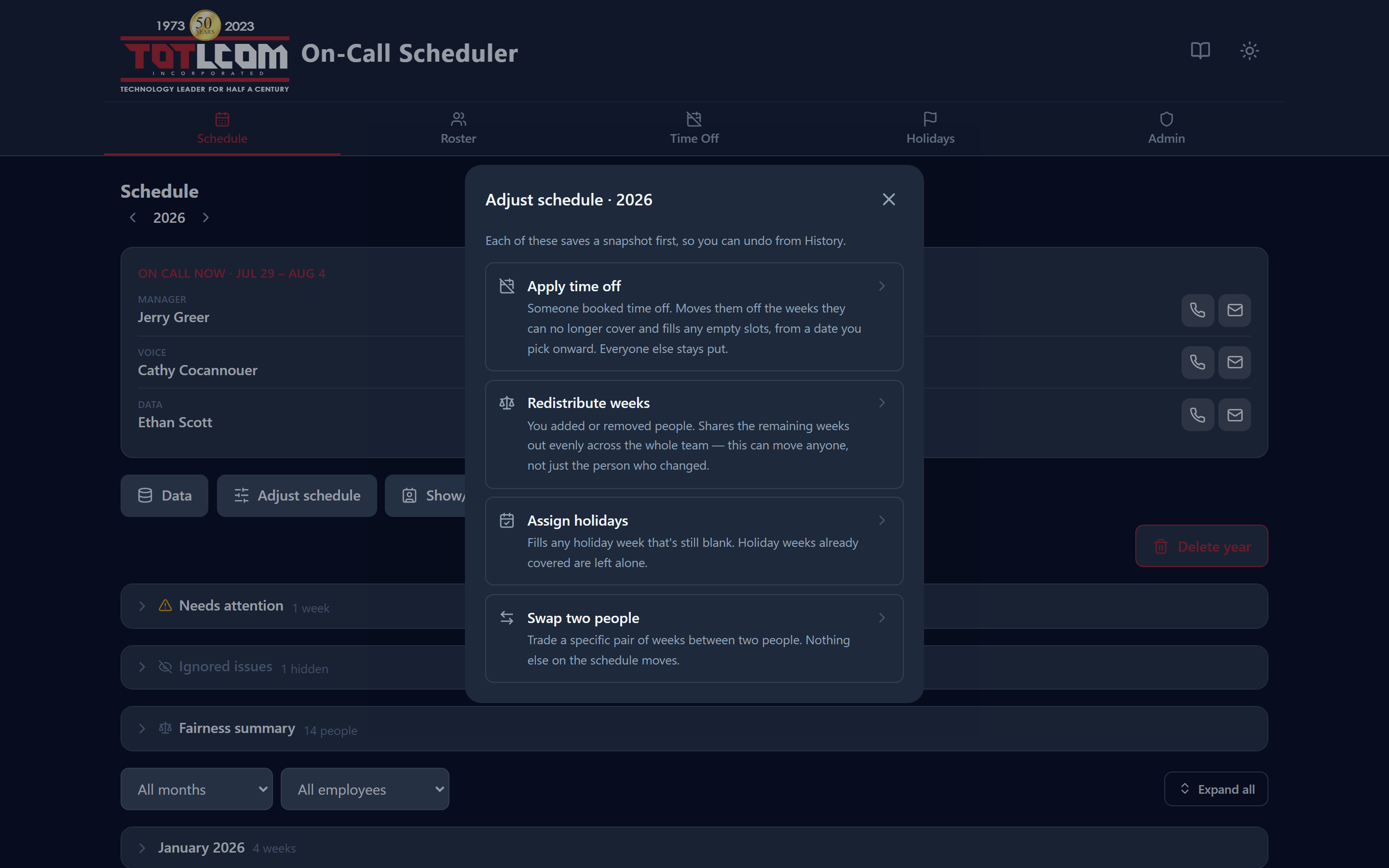
Each option says what it's for, because these are easy to confuse.
Before you build a year, make sure the Roster, Time Off, and Holidays are up to date, because the scheduler reads from all three.
Generate — build a whole year
Use Generate to create a brand-new schedule for a year (or completely rebuild one).
- Pick the year.
- Click Generate.
- Confirm. The app fills every week fairly and saves the result.
How it decides:
- Each role (Manager / Voice / Data) is filled from its own pool, always giving the next week to whoever has been on call the fewest times so far, so each pool stays balanced.
- No back-to-back weeks — the same person won't be on call two weeks in a row (managers are checked across all roles).
- People on PTO that week are skipped.
- Holiday weeks are left blank for you to fill (volunteer-first) — use Assign holidays to fill them automatically.
It's fair and repeatable
Generating shuffles the starting point each year so the same people don't always get the same weeks — but generating the same year again produces the same schedule.
Generate replaces the year
Generate rebuilds the whole year from scratch, which also clears its covered days (day overrides). If you only need to fix part of a year that's already in use, use Apply time off or Redistribute weeks instead (below) — both keep covered days, and so does Swap two people.
Apply time off — repair from a date forward
Use Apply time off after something changed mid-year (someone booked new PTO, or left). It repairs rather than rebuilds, and it leaves everyone else exactly where they are.
- Click Adjust schedule → Apply time off.
- Choose an effective date — weeks before this date are left untouched.
- Confirm.
What it does: keeps existing assignments and only reassigns weeks where the assigned person is now on PTO (or no longer active), and fills any empty slots. Holidays are included — a filled holiday whose person is now on PTO gets reassigned, but blank holidays stay blank.
Tip
Reach for Apply time off for small mid-year fixes. Reach for Generate only when you want a completely fresh, fully balanced year.
Previously called Regenerate
This is the same operation that used to be labelled Regenerate. Only the name changed — the behaviour is identical.
Redistribute weeks — even things out after a roster change
Use Redistribute weeks after you add or remove a person in the roster. It evens out the per-pool load while changing as few future weeks as possible.
- Click Adjust schedule → Redistribute weeks.
- Choose the effective date (only weeks from that date forward can move).
- Confirm.
People already carrying their fair share keep their weeks; over-loaded weeks shift to under-loaded people (including new hires). Holidays are handled separately by Assign holidays.
This can move anyone
Unlike Apply time off, which only touches the person whose availability changed, redistributing rebalances the whole team — so people who weren't involved in the roster change may still see their weeks move.
Previously called Rebalance
Same operation, clearer name.
Swap two people — trade specific weeks
Use Swap two people when two people simply want to trade upcoming turns. Nothing else on the schedule moves.
- Click Adjust schedule → Swap two people.
- Pick person A and one of their weeks.
- Pick person B and one of their weeks.
- Confirm.
The app checks the swap is valid first — it won't land someone on a week they're on PTO, and it won't double-book anyone — then applies it.
Assign holidays — fill the blank holiday weeks
Holiday weeks start blank and marked "(fill manually)" so you can ask for volunteers. When you're ready to fill the rest automatically:
- Click Adjust schedule → Assign holidays.
- Confirm.
It fills the blanks balanced by holiday count, so everyone gets one holiday before anyone gets a second (as far as the roster allows). Filled holiday weeks then show the assigned person.
If a week can't be filled normally
If literally no one is eligible for a slot (everyone either worked the week before or is on PTO), the app won't leave it blank — it assigns the most-rested person instead, relaxing the back-to-back rule first and overriding PTO only as a last resort. These weeks are flagged so you can still find a volunteer and fix them by hand or with a swap.
Undo a change
Every one of these actions saves a snapshot first. If you don't like the result, open History → Snapshots and Restore the previous version. See The Schedule screen → History.
To find out who made a change and when, use History → Activity.