Holidays
The Holidays tab lists the company holidays the scheduler treats specially. On a holiday week, the app leaves the slot blank (marked "(fill manually)") so you can ask for volunteers first, then fill the rest with Assign holidays.
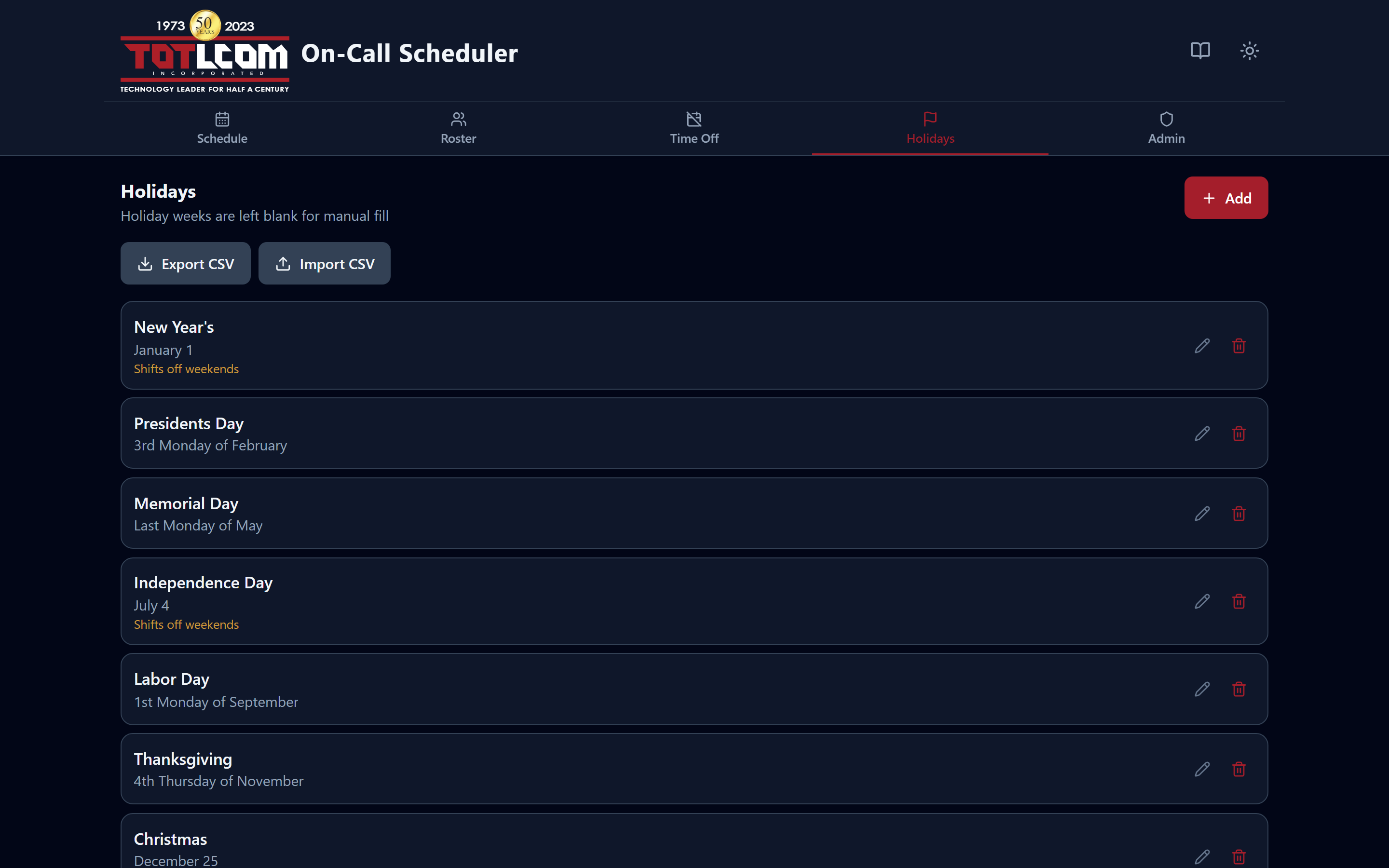
Each holiday is a rule that resolves to a date every year.
How holidays are defined
Each holiday is a rule, not a single date, so it works every year automatically. For example:
- a fixed date (e.g. July 4),
- or a floating date (e.g. "the 4th Thursday of November" for Thanksgiving).
Some holidays can shift when they land on a weekend (e.g. observed on the nearest weekday). Each holiday also has an active switch — turn one off to make the scheduler ignore it without deleting it.
Adding or editing a holiday (editors/admins)
- Click Add (or Add holiday).
- Give it a name.
- Choose the rule (fixed date, or "nth weekday of a month").
- Set any shift behavior for weekends.
- Save.
Use Edit to change a rule, or the active toggle to enable/disable it.
Filling holiday weeks on the schedule
Defining holidays here only marks those weeks. To actually assign people, go to the Schedule screen:
- Fill some by hand from volunteers, then
- click Assign holidays to fill the rest, balanced so everyone gets one holiday before anyone gets a second.
See Building & fixing a schedule → Assign holidays.
Import / export
Holidays support CSV import and export. See Import, export & backup.